
 Chrome
 Firefox
 Edge
Edge
Top 6 Find and Download Tools in 2025
Downloading files sounds like a tiny task, something we all do without thinking. Yet once you start dealing with real volume, it becomes a small project on its own. I spend an embarrassing amount of time inside my browser and my downloads folder.
Before we dive in, I want to make one thing clear:
- There is a difference between downloading website assets (images, CSS, fonts, random scripts)
- And downloading the actual files the website points you to (PDFs, audio, video, ZIPs, datasets, etc.)
This article is about the second group. Let’s start
1. Download All Files
Best For
People who want a simple and safe way to find and download many files from a page in just a few clicks. It feels natural if you live in the browser and do not want to tweak system tools.
Features
- Scans the current page and lists all files you can download in a clean panel
- Lets you sort and filter by file type, size, or name to pick what you really need
- Works well with sites that use a lot of JavaScript and dynamic links
Pros
- Easy to access in major browsers (Chrome, Firefox, Edge) and quick to add from the extension store
- Simple interface with sorting and filtering, and it also spots uncommon file types
- Strong focus on privacy: everything stays on your device, no external servers, minimal required permissions
Cons
- Uses the built in browser download manager, so no advanced controls like custom proxies or many special connection rules
- No fine control over download order or reconnect logic, unless you combine it with another download manager extension
- Does not grab embedded assets like inline images on a page, which is outside its scope by design
Final Verdict
When I just want to grab all the relevant PDFs or ZIP files from a page and move on with my day, this is usually my first choice. It is safe because it lives inside the browser and keeps permissions tight. For most students, researchers, and busy people, two clicks from list to download is more valuable than a hundred niche settings. Power users who love to tune every connection may still want a separate system downloader.
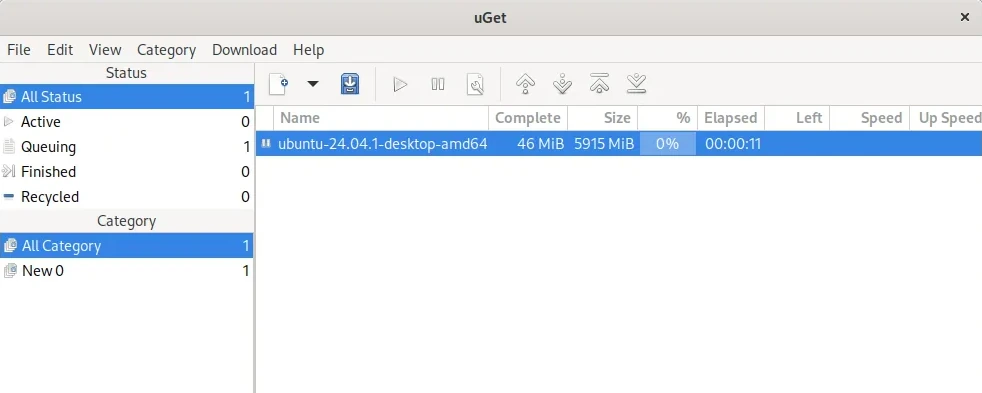
2. uGet
Best For
Users who want a light, traditional download manager that runs on the system, especially on Linux. It is a good step up from the browser download panel without going full expert mode.
Features
- Classic download manager interface with queues, pause, resume, and basic scheduling
- Supports common protocols such as HTTP, HTTPS, and FTP for many file sources
- Cross platform support: runs on Windows, Linux, and macOS, with a solid reputation in Linux circles
Pros
- Light on system resources and easy to understand, even on older machines
- Works across different systems, which is handy if you jump between a desktop and a laptop
- Covers many everyday and some advanced needs, including queues and resuming stopped downloads
Cons
- Needs to be installed on your system, which also means it can read and write to your drive
- Lacks some of the very advanced tricks experts use, such as auto captcha handling or host specific plugins
- Can struggle with complex premium file hosters or tricky automation cases
Final Verdict
For many years I used uGet as my middle ground tool. When the browser was too basic but I did not want to open a monster tool, uGet handled my file batches just fine. I only install system tools like this when I trust the source, because they have broad access to my files. If that feels acceptable to you, uGet is a calm, no drama worker that just keeps going.
3. DownThemAll!

Best For
People who want fine control over everything on a page: links, images, and other resources. It suits users who are not afraid of many options and want to squeeze more from browser based downloading.
Features
- Lets you select all links or images on a page and filter them by type or pattern
- Can queue large batches of files and supports pause and resume inside the browser
- Offers advanced filters so you can, for example, pull only images, or only files with certain names or extensions
Pros
- Lives in the browser as an extension, so you do not need to install a separate program
- Offers strong filtering and management that power users love when they handle mixed content pages
- Can download both embedded and linked files, which helps if you really need everything on the page
Cons
- The interface feels busy for simple needs and can scare beginners
- Can have trouble with sites that rely a lot on dynamic JavaScript where links are built on the fly
- Needs many browser permissions, which some users may not feel comfortable with
Final Verdict
DownThemAll feels like the power user cousin of standard browser downloads. When I was collecting whole image galleries or mixed media from older websites, it was a lifesaver. But each time I recommend it to friends, I add a small warning: the panel is packed with options, and the permission prompts can look scary. If you are fine with that and enjoy control, this tool can save hours.
4. JDownloader
Best For
Experts and heavy users who live in premium file hosters, archives, and very large collections. It is built for complex workflows that simple tools cannot handle.
Features
- Uses a rich plugin system to talk to many file hosts, video platforms, and link protectors
- Supports advanced features like link decryption, extraction of multi part archives, and full batch automation
- Handles premium accounts, complex waiting rules, and even some captcha flows with the right setup
Pros
- Extremely flexible for expert use, with plugins that cover many niche scenarios
- Great at handling messy real world links from text files, clipboards, and protected pages
- Can run for long sessions and manage large project level download lists
Cons
- Needs a full system install and has wide access to your machine
- The interface and workflow can overwhelm new users, with many settings and panels
- Uses more resources than light tools, which may be noticeable on older or low power devices
Final Verdict
The first time I opened JDownloader, I closed it again after two minutes. It felt like an airplane cockpit. When I came back later with real problems to solve, I learned to appreciate that complexity. For multi day download projects or work with archives and premium hosters, it has almost no rival. Just remember that this is a system level tool. Download it from official sources, check the settings, and treat it with the same care you give any powerful installed program.
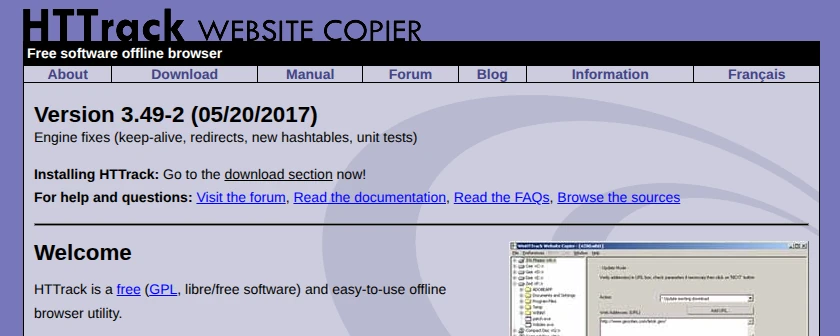
5. HTTrack
Best For
Users who want to mirror whole sites or big parts of them for offline use. It is old but still useful when you need a full copy, not just a few single files.
Features
- Saves complete websites, including many linked pages and resources, into local folders
- Uses project based profiles, so you can repeat runs with the same rules and settings
- Gives fine control over which paths, file types, and hosts to include or skip
Pros
- Offers detailed filters that let expert users shape exactly what gets mirrored
- Includes options like spider depth, proxy use, and many connections for faster site copy
- Project system makes it easy to reuse the same setup for recurring jobs
Cons
- No active new feature development for modern web patterns, so some sites will not behave well
- The interface and setup process feel dated and complex for new users
- Needs installation on your system and does not work well with sites that rely a lot on modern JavaScript
Final Verdict
HTTrack feels like that old tool a colleague swears by, and you only understand why after a real test. For small, modern sites it can be overkill if you only want a few PDFs. But for old style sites with static link structures, it is still a quiet workhorse. I only reach for it when I know I want a full mirror. If your main need is selective file grabbing, it may feel heavy and slow to configure.
6. Custom Made Script
Best For
Developers and curious users who are tired of limitations and want a solution that fits one specific site or workflow perfectly. This is the path of the tinkerer.
Features
- Script can be tailored to a single site structure and naming pattern, making it very efficient there
- Can be integrated with your other tools, for example piping URLs from a text file or database
- Full control over how you log, throttle, and organise results on disk
Pros
- Surprisingly fun to build if you enjoy coding, and a nice reason to practice
- Once it works, it can be very fast and stable for the specific site it was written for
- You own the logic and the code, so you know exactly what it does with your data
Cons
- Requires programming skills and some comfort with command line tools
- Takes time to design, write, test, and fix, especially for complex sites
- Easy to forget the details later, like which flags to use or which parameters your script expects
Final Verdict
Each time I write a custom script, I feel like I am learning again how the web really works. It is rewarding, but also a time sink. If your goal is to download a course tonight, a script is not the fastest way. If you often work with the same site or dataset and you know how to code, a small script can pay off. For everyone else, it is better as a curiosity than a daily tool.
Choosing the Right Find & Download Tool
By this point you may feel that downloading files is a bigger topic than you expected. And it is. The good news is that you do not need all six tools. You probably need one main tool and maybe one backup.
Let me break it down the way I think about it in real life.
For All in One Use
If I had to pick a single tool for most people, it would be Download All Files.
It lives in the browser, shows you a clear list of what is available, and helps you filter and grab exactly what you want. There is no strange installer, no extra background service, and almost no learning curve. For students collecting PDFs, researchers browsing digital libraries, and anyone grabbing batches of music or docs, it hits the sweet spot.
For Mass Downloading With Advanced Settings
When you grow into edge cases, JDownloader is the expert choice.
If your days are full of premium hosters, password protected archives, and link lists with a hundred entries, simple tools will not be enough. JDownloader can watch your clipboard, decode links, handle multi part archives, and follow complex rules. It is the king of the heavy jobs, with the cost of higher setup time and more complexity.
For Safety and Privacy
In theory, your own custom script wins here because you control every line of code. You can audit it, keep it local, and avoid sending anything through external servers.
But in practice, most people will never write a script.
For everyday use, my privacy pick is Download All Files again. It runs in the limited context of the browser, does not need full disk access, and uses only the permissions it needs for the current tab. There are no external servers in the middle. If you are careful about what you install, this balance feels safe and practical.
For Simplicity
If a tool makes you think too much, you stop using it.
For pure simplicity, Download All Files is hard to beat. Open a page, click the extension, see the list, pick your files, done. There is nothing to configure first. DownThemAll is more powerful inside the browser, but it is also more noisy and better suited for users who enjoy tinkering.
For Maximum Download Speed
When raw speed matters most, system based tools usually win.
Programs like JDownloader, HTTrack, and uGet can open many connections and manage more aggressive download strategies. That helps when your internet provider or a server limits the speed per connection. They are also better suited for long overnight runs or when you need to push your bandwidth hard.
The price is higher access to your system and more configuration. If I am only downloading papers for an exam, I do not bother. But for big archive jobs, these programs still hold an edge.
Final Thoughts
Downloading files sounds like a tiny task, something we all do without thinking. Yet once you start dealing with real volume, it becomes a small project on its own.
I have had weeks when I needed fifty papers from five different repositories, and an evening when I decided to save an entire TV show before it vanished from a fan site. In those moments, the difference between clicking one hundred times and clicking twice is not just comfort. It is whether you get the job done at all.
There is no single perfect tool for every situation. That is the quiet lesson I learned while trying all of these.
I hope this comparison helps you pick the right tool for your next batch of downloads. If you try one of them and find a trick I did not mention, I would love to hear about it someday.